
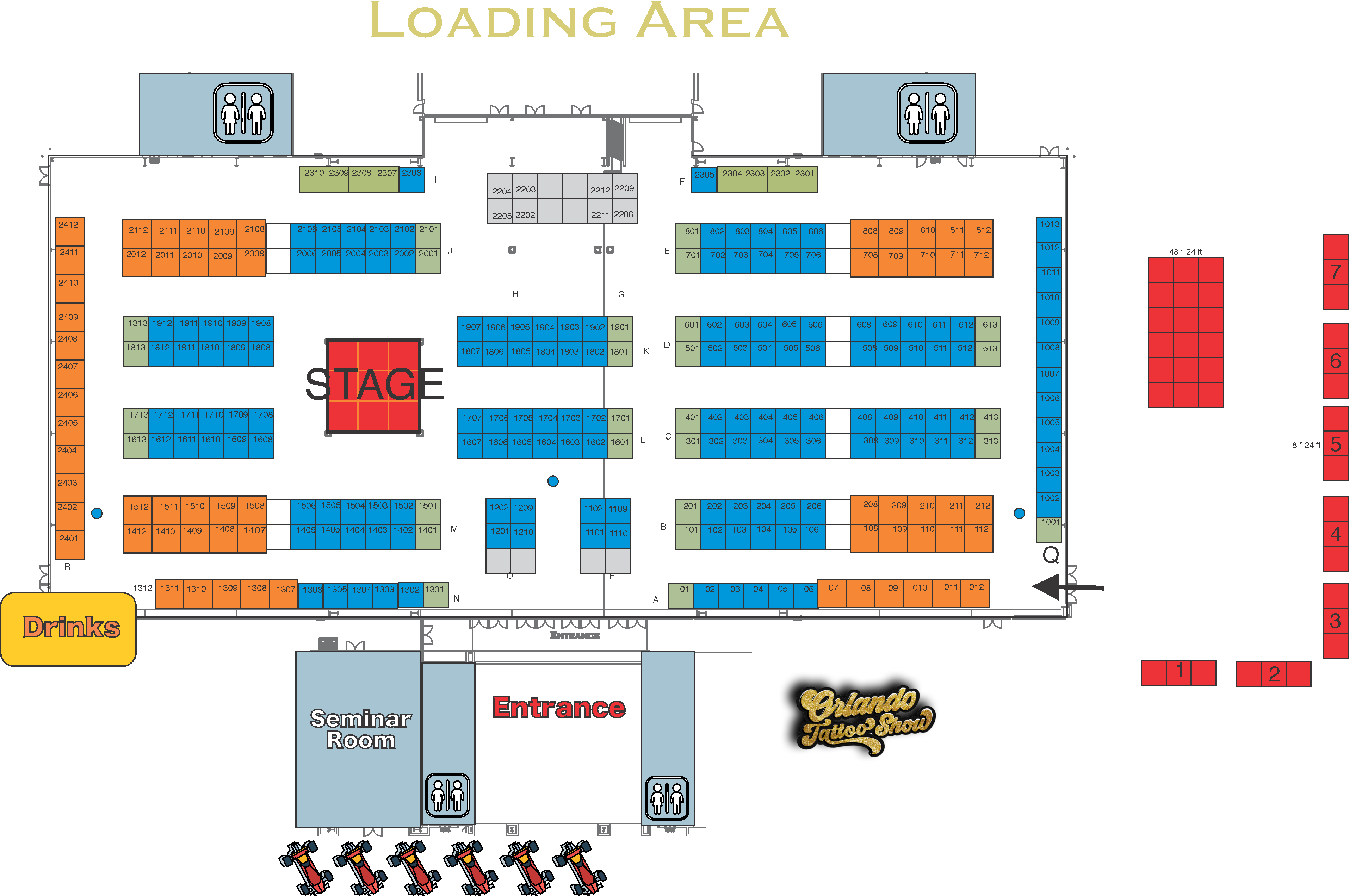
Artist List OTS 2026 · all assigned booths
This is how it looks on a phone. It shares the same coordinates and calibration as desktop.
⚙️ Panel Admin
Click a booth
to edit
↩️ Undo / Redo
🧹 Auto-organize the map
📐 Map x-ray (pipe & drape)
🎨 Artist directory
📐 Booth types (8×8 / 10×10)
⚠️ Verificar duplicados
1. Select a zone
2. Move (%)
↑↓←→=0.2% · Shift=1%
3. Escalar
4. Espaciado
🎨 Booth colors
🖼️ Map background image
Upload the floor plan PNG/JPG. It is saved to your Google Drive and shown in the app automatically.
🎯 Map calibration (4 corners)
The 4 corner points sync ALL layers (image, booths, walkways, routes). Adjust them if the background image doesn't line up with the booths.
📱 Mobile preview
Check how the map looks on mobile. It uses the SAME calibration and coordinates as desktop, so they are always in sync. If you adjust calibration, it applies to both.
💡 The mobile and desktop maps share the same coordinates. Any change you make (move booths, calibrate, walkways) is reflected automatically in both.
Ancho imagen
Zoom global
Opacidad imagen
Map image URL
Posiciones (JSON)
Export coordinates and URLs to clipboard
☁️ Backup to Sheet
Coordinates sync automatically with the "Coordenadas" sheet each time you move a booth (with a small delay).
New booth data
📍 Route starting point
All routes start from this booth when someone taps "Get directions".
👁 Display
Walkways are only shown to admins. Users never see them.
✏️ Walkway editor
Draw walkways directly on the map: enable the mode, click to place points, double-click to finish. Walkways connect where they touch.
📋 Walkways loaded (0)
☁️ Backup to Sheet
Walkways are saved in the "Caminos" sheet.
🏆 Winners table
Winners Google Sheet link (/edit format).
📅 Schedule table
Schedule Apps Script URL (/exec format).
🏆 Contests API
Apps Script URL for contests/categories (/exec format).
🎯 Sponsor logos (loading screen)
Sponsor image links, separated by comma or line break. They rotate during loading.
ℹ️ Current status
⚡ Performance test
📦 Device cache
The app keeps a local copy so it opens instantly. It revalidates against the Sheet on every launch and when returning from the background.
When you update the app HTML, bump the app_version key in the MapConfig sheet (e.g. 150). Devices running the old HTML will see an update prompt.